
Ever wished you could ditch the tiny phone screen and enjoy your favorite movies and shows on the big screen — for free? That’s exactly what OnStream TV lets you do. Whether you’ve got a sleek Samsung in the living room, an LG in the bedroom, or an Android TV Box you picked up last year, OnStream has you covered.
This guide walks you through everything — from checking if your TV is compatible to getting the app running in minutes. No tech expertise needed.
Why Watch OnStream on Your TV?
Your phone is great, but nothing beats kicking back on the couch with a 50-inch screen in front of you. Here’s why thousands of people are making the switch to OnStream on TV:
- Bigger screen, better experience
Movies and shows just hit differently on a large display - Completely free
No subscriptions, no hidden fees, no credit card required - Massive content library
Thousands of movies, TV shows, live channels, and more - HD & Full HD quality
Crystal-clear streaming right on your TV - No sign-up required
Download, install, and start watching. That’s it.
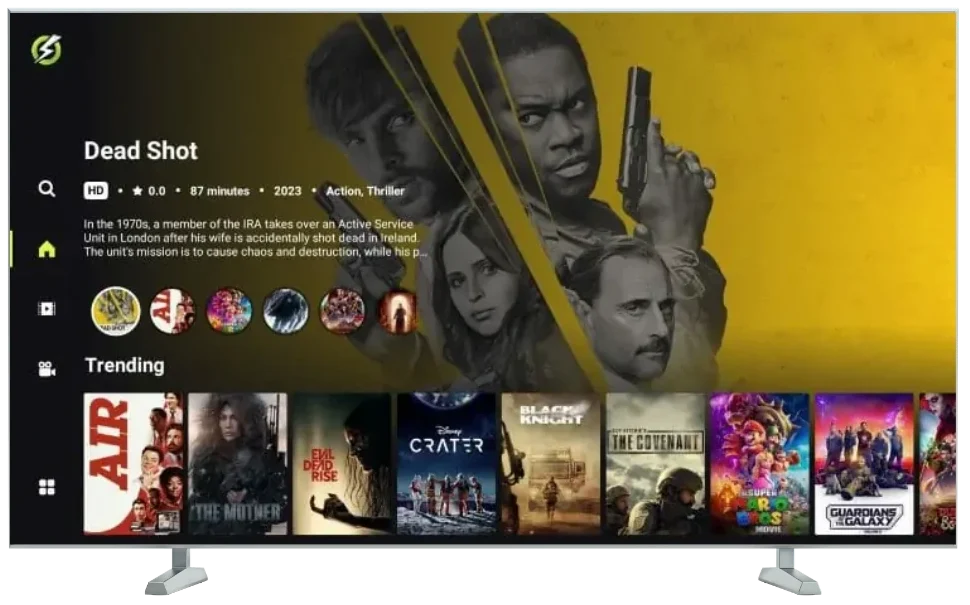
What You Need Before You Start
Getting set up is super simple. Just make sure you have these ready:
- A stable WiFi connection
- The OnStream APK file (download link on this page)
- “Unknown Sources” or “Install Unknown Apps” is enabled on your device
- A USB drive (only needed if you’re sideloading from a computer)
That’s honestly it. Most people are up and running in under 5 minutes.

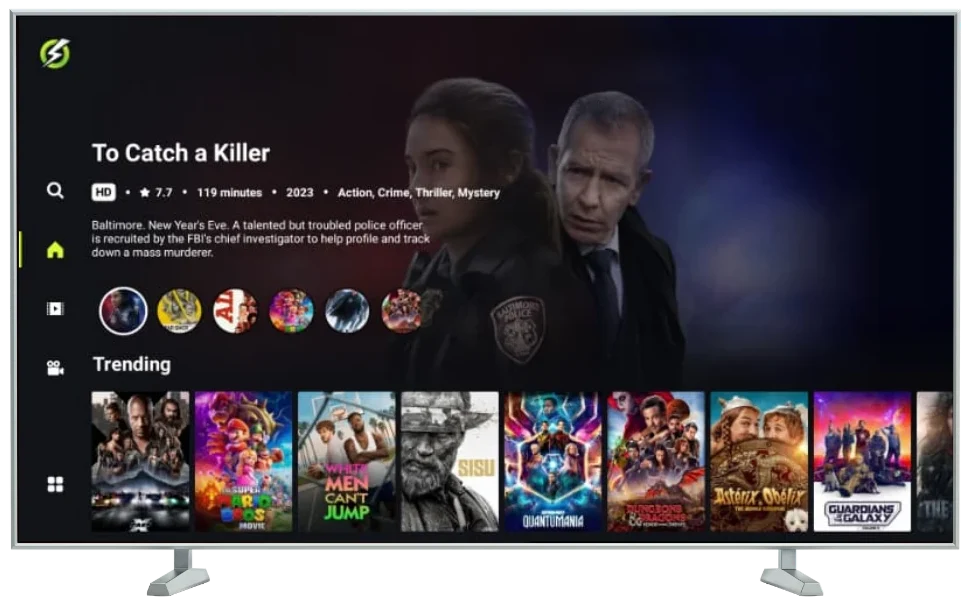
OnStream APK Features on Smart TV
Once you’ve got OnStream on Android TV or any supported device, here’s what you’re working with:
Huge Content Library From Hollywood blockbusters to trending TV series, live sports channels, and international content — it’s all there in one place.
HD & Full HD Streaming Stream in 720p, 1080p, and even higher quality depending on your connection. Your big screen deserves nothing less.
Is OnStream APK Compatible With Your TV?
Before you dive in, here’s a quick compatibility breakdown so you know exactly where you stand:
TV / Device
Android TV
Google TV
Xiaomi TV / Mi TV
Amazon Fire TV Stick
Android TV Box
Samsung Smart TV (Tizen)
LG Smart TV (WebOS)
Compatible?
✅ Yes
✅ Yes
✅ Yes
✅ Yes
✅ Yes
Indirect
Indirect
Method
Direct APK install
Direct APK install
Direct APK install
Via the Downloader app
Direct APK install
Via Android TV Box + HDMI
Via Android TV Box + HDMI
Quick note on Samsung & LG: These TVs run their own operating systems (Tizen and WebOS), which don’t support Android APKs natively. The easiest workaround is plugging in an Android TV Box or Fire Stick via HDMI — it works like a charm.
OnStream APK Features on Smart TV
Once you’ve got OnStream on Android TV or any supported device, here’s what you’re working with:
Huge Content Library From Hollywood blockbusters to trending TV series, live sports channels, and international content — it’s all there in one place.
HD & Full HD Streaming Stream in 720p, 1080p, and even higher quality depending on your connection. Your big screen deserves nothing less.
Multiple Streaming Servers. If one server is slow, just switch to another. No buffering, no frustration — just smooth playback every time.
Subtitle Support: Watching something in a foreign language? OnStream has subtitles in dozens of languages, so nothing gets lost in translation.
Offline Downloads Download any movie or episode directly to your device and watch it later — no internet required. Great for travel or spotty connections.
No Account Needed Seriously — no email, no password, no personal info. Just install and watch.
Regular Content Updates: New movies and episodes are added constantly, so there’s always something fresh to discover.
Title Request Feature Can’t find what you’re looking for? You can request specific titles directly within the app.
Troubleshooting – OnStream Not Working on TV?
Running into a hiccup? Here are the most common issues and how to fix them fast:
OnStream won’t install → Double-check that “Unknown Sources” is enabled in your TV settings. This is the #1 reason installs fail.
App installs but won’t open → Try clearing the app cache: Settings → Apps → OnStream → Clear Cache. Then relaunch.
Video keeps buffering → Switch to a different server inside the app. If that doesn’t help, try connecting your TV via Ethernet instead of WiFi.
Content not loading/showing errors → The app may need an update. Uninstall and reinstall using the latest APK from this page.
OnStream not showing on Samsung or LG TV → These TVs don’t support APK installs directly. Use an Android TV Box or Fire Stick connected via HDMI — works perfectly.
Remote control not responding in the app → Some older remotes have limited navigation. Try using a Bluetooth mouse or keyboard as a temporary workaround.
How to Download & Install OnStream TV
There are a few ways to install the OnStream APK for TV, depending on your device. Pick the method that fits your setup:
Method 1 – Android TV & Google TV (Easiest Method)
This works for most Android-based TVs, including OnStream APK for Google TV, Xiaomi TV, and any device running Android TV.
- On your TV, go to Settings → Device Preferences → Security & Restrictions
- Enable “Unknown Sources” or “Install Unknown Apps”
- Open the Google Play Store and download the Downloader app (by AFTVnews)
- Launch Downloader and enter the OnStream APK download URL
- Once the APK downloads, tap Install
- Open OnStream and start streaming — enjoy!
Method 2 – OnStream APK for Xiaomi TV / Mi TV
The process on Xiaomi TV is almost identical to Android TV, with one small difference:
- Head to Settings → Additional Settings → Privacy
- Turn on “Unknown Sources”
- Download a file manager app (like X-plore or FX File Explorer) from the Mi App Store
- Transfer the OnStream APK to a USB drive and plug it into your Xiaomi TV
- Use the file manager to locate the APK and tap Install
- Done! Launch OnStream from your home screen
Method 3 – OnStream APK for Fire TV Stick
Love your Fire TV Stick? Good news — OnStream APK for Fire TV works great on it.
- On your Fire TV Stick, go to Settings → My Fire TV → Developer Options
- Turn on “Apps from Unknown Sources”
- Go back to the home screen and search for the Downloader app — install it
- Open Downloader and type in the OnStream APK URL from this page
- Hit Download, then Install when prompted
- Find OnStream in your apps and start watching on the big screen!
Method 4 – Via USB Drive (Works on Most Android TVs)
Prefer doing things the old-fashioned way? This method works without needing any internet on your TV during the install:
- Download the OnStream APK on your phone or computer
- Copy the APK file to a USB drive
- Plug the USB into your TV
- Open a File Manager on your TV and navigate to the USB drive
- Find the OnStream APK file and tap it to install
- That’s it — launch the app and enjoy!
Frequently Asked Questions (FAQs)
Download OnStream APK Now
Ready to turn your TV into a free streaming powerhouse? Hit the button below to grab the latest version of OnStream APK and follow the steps for your device above.
[Download OnStream APK – Latest Version]
Got questions or running into any issues? Drop them in the comments below — we’re always happy to help!